Viewing captures
Open a PCAP or pcapng file online without Wireshark
Updated · Worked on public sample captures, each linked to its report
A capture arrives attached to a support ticket, a CTF task or a colleague's message, and the machine in front of you has no Wireshark: a locked-down work laptop, a Chromebook, a jump host. You can still open a PCAP file online and get to the point quickly: the report sorts the capture into views with a count beside each, so the first question usually has an answer before you open a single session. Individual frames and TLS decryption still need Wireshark on a proper workstation.
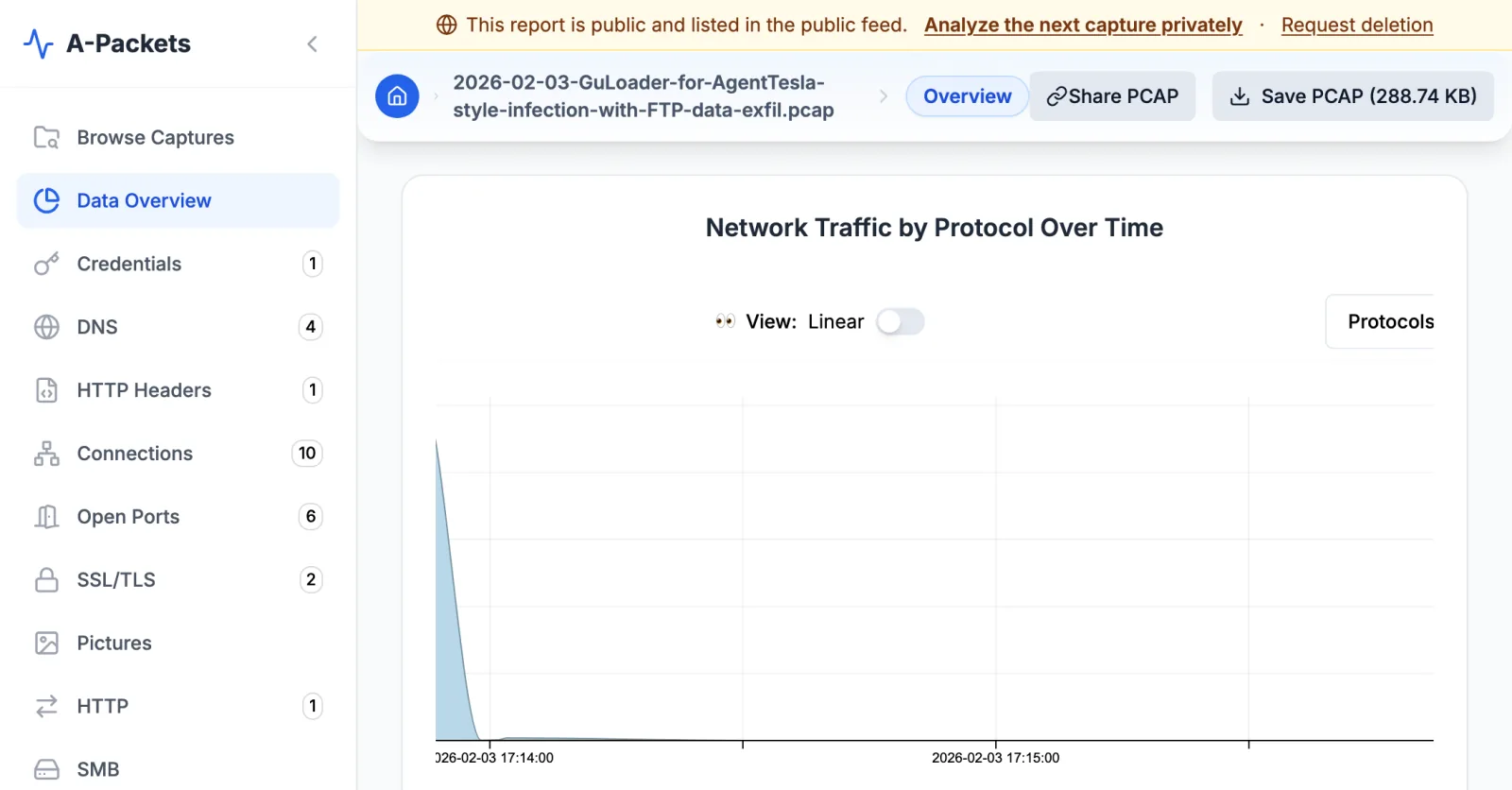
Start from the question, not the packet list
A-Packets is an online PCAP viewer that parses the whole file once and sorts what it finds into views, so each first question about a capture has one place to look. The sample reports below show each view on a capture where it carries the story:
| Question | View | Sample report |
|---|---|---|
| Who talked to whom, and how much? | Connections, Network | Cobalt Strike: one Cloudflare address outweighs Microsoft |
| Was anything scanned? | Open Ports | Nmap SYN scan: 1,000 ports probed, three open |
| Which names were looked up? | DNS | DNS enumeration: 1,301 guesses, two refused zone transfers |
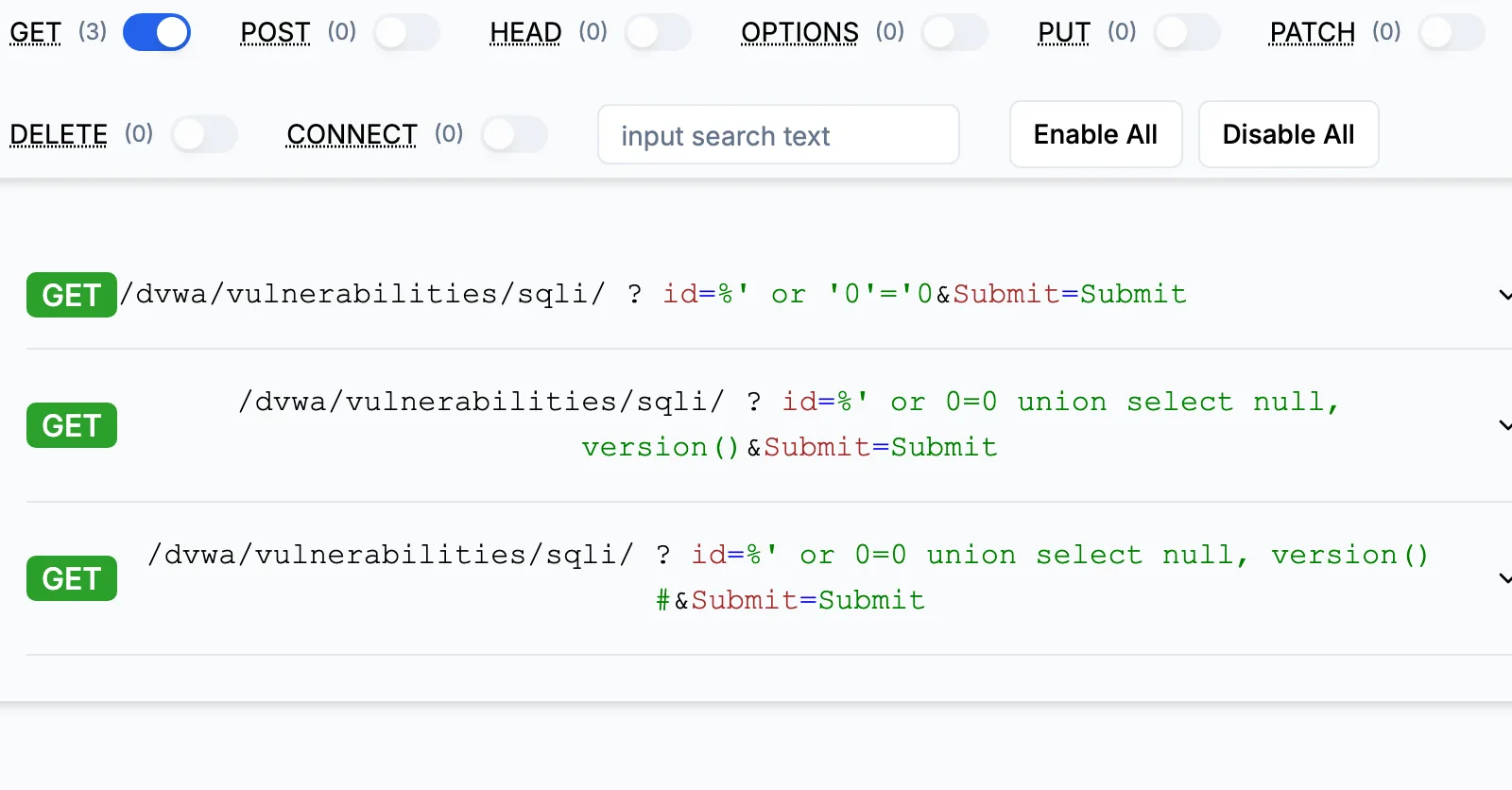
| What went over plain HTTP? | HTTP, HTTP Headers | SQL injection: three requests, three 200s |
| Did a login cross in cleartext? | Credentials | FTP and Telnet: two readable passwords |
| What hides behind TLS? | SSL/TLS | Heartbleed: a 3-byte request, a 16 KB reply |
| Which files moved? | HTTP, Documents, Pictures | ARP poisoning: 12 objects carved from Google's replies |
On the SQL injection sample, the HTTP Headers view alone tells the story, with each injected query string printed in full:
The sidebar puts a count beside every view, and a view with no count is a finding as well. A capture from a web server with no HTTP in it was taken on the wrong interface or filtered before it reached you, and that is worth knowing before you spend an hour on it. Wireless captures get one more view, WiFi, with the networks, access points and probe requests seen in 802.11 frames. In a CTF task the counts do the same job: the flag usually hides in an HTTP body, a DNS name or a login, and the sidebar says which of those the file contains.
Open a PCAP file online in three steps
- Drop the file on the upload page. pcap and pcapng both work, including .cap files from wireless tools. Public analysis takes files up to 25 MB; a one-time pack or the Professional plan takes 50 MB, and Advanced takes 100 MB.
- Wait for the analysis. A small capture is usually ready in 15 to 20 seconds; large or busy ones take longer.
- Read the counts, then the views. The report has its own URL, keeps the original file name in its header, and Save PCAP downloads the capture you uploaded, so the evidence and the analysis stay together.
Nothing is installed on your machine, which also means nothing in the capture runs on it. Files carved from the traffic are listed with a download button; leave them alone on a machine you care about.
When the file is over the limit, cut it down to what the question is about before uploading. tshark keeps one host's traffic, and editcap splits a long capture into one file per minute:
tshark -r big.pcapng -Y "ip.addr == 10.0.0.5" -w host.pcapng
editcap -i 60 big.pcapng part.pcapng
Captures from Windows pktmon arrive as .etl files; pktmon etl2pcap on the machine that recorded them
converts them to pcapng first.
Read a stranger's capture with some suspicion
A file someone else recorded comes with assumptions you cannot see. Before trusting a conclusion, check three things. First, the span: the Data Overview charts bytes per protocol over time, so a capture of two minutes cannot confirm what happened yesterday. Second, the vantage point: the Network graph shows whose traffic is in the file, and a capture from one workstation cannot speak for its neighbors. Third, completeness: sessions that end early or bodies that never finish suggest a filter, a full disk or a sensor that kept only the start of each packet.
Write down what the sender claims the capture shows, then see whether the counts agree. "The server stopped answering at noon" should show up as sessions without replies; "the user typed a password" should show up in the Credentials or HTTP view, unless it went over TLS, where no viewer will find it.
When the job needs Wireshark after all
A-Packets works at the level of sessions and findings. Some questions live below that level: a malformed field, a retransmission pattern, the exact timing between two frames, a protocol it does not parse, or traffic you can decrypt because you hold the TLS keys. The report has no packet list, no byte view and no decryption, so those belong in Wireshark or tshark. Use the report to find the conversation and its time, then open the same file in Wireshark with a display filter for that host and port, and you start at the right frame instead of the first one.
Browser-only viewers that run Wireshark's dissectors in WebAssembly sit at the other end: they never upload the file, and they show packets rather than findings. For a capture you may not share at all, that is the right tool, or the on-premise build of A-Packets inside your own network.
Sharing what you found
Public analysis is free because its reports are public: the report is listed in the public feed, and anyone with its link can open it and the files carved from it. That suits CTF tasks, lab traffic, vendor samples and anything already sanitized, and it makes a support ticket easy to resolve, since everyone reads the same report. A capture from a production network, an incident or a client engagement needs a private report. Private plans keep reports out of the feed, and a one-time pack covers a single case without a subscription. The security page explains how uploads are stored and deleted, which is the page to send to whoever has to approve the upload.
Opening captures online: common questions
- Can I open a pcapng file online without installing Wireshark?
- Yes. Upload it on the upload page and the report opens in your browser. pcap and pcapng are both accepted, nothing is installed, and nothing in the capture runs on your machine.
- Does A-Packets show individual packets the way Wireshark does?
- No. It rebuilds sessions and lists what they carried, with no packet list, byte view or TLS decryption. For frame-level detail, open the same file in Wireshark at the host, port and time the report points to.
- Who can see a report made with public analysis?
- Anyone with its link, and it is listed in the public feed together with the files carved from the capture. Upload only captures you can share, and use a private plan or the on-premise build for the rest.
- How do I open a capture recorded with Windows pktmon?
- Convert it first. pktmon etl2pcap turns the .etl file into pcapng on the machine that recorded it, and the result uploads like any other capture.