How to Upload a PCAP File for Analysis
Analyzing network traffic can be crucial for diagnosing network issues, detecting security threats, and understanding the performance of your network. A-Packets is an online tool that allows users to upload PCAP/PCAPng (Packet Capture) files for detailed analysis. This article will guide you through the steps to upload a PCAP file to analyze and view the results. Screenshots will be included to illustrate each step.
Step 1: Prepare Your PCAP (PCAPng) File
Before you start, make sure you have your PCAP file ready. A PCAP file contains network traffic data captured using tools like Wireshark or tcpdump.
Step 2: Visit apackets.com Upload Page
Open your web browser and go to apackets.com/upload. You will be greeted by the upload page where you can see an option to upload your file.
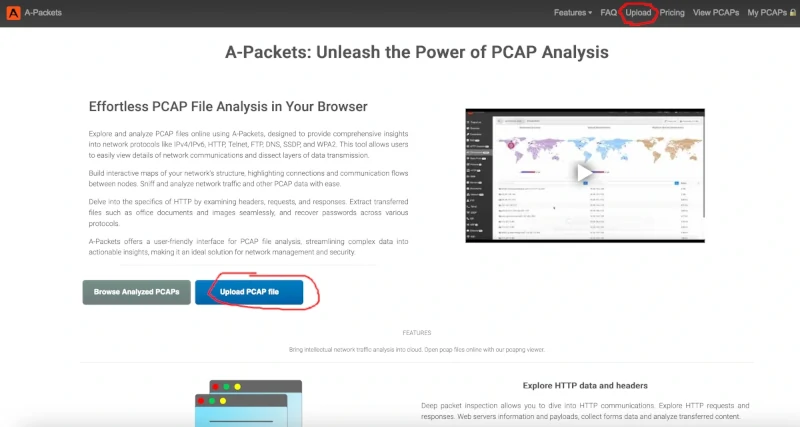
Step 3: Upload Your PCAP File
- Locate the Upload Section: On the uplosad page, find the section labeled "Upload PCAP File". It is usually prominently displayed.
- Select Your File: Click on the "Choose File" button to open a file dialog. Navigate to the location of your PCAP file, select it, and click "Open".
- Upload the File: After selecting the file, the website will start uploading your file. This may take a few moments depending on the size of your PCAP file and your internet connection.
Step 4: Wait for the Analysis
Once your file is uploaded, A-Packets will begin analyzing the PCAP file. This process may take a few minutes. During this time, you can see a progress indicator or a message informing you that the analysis is in progress.
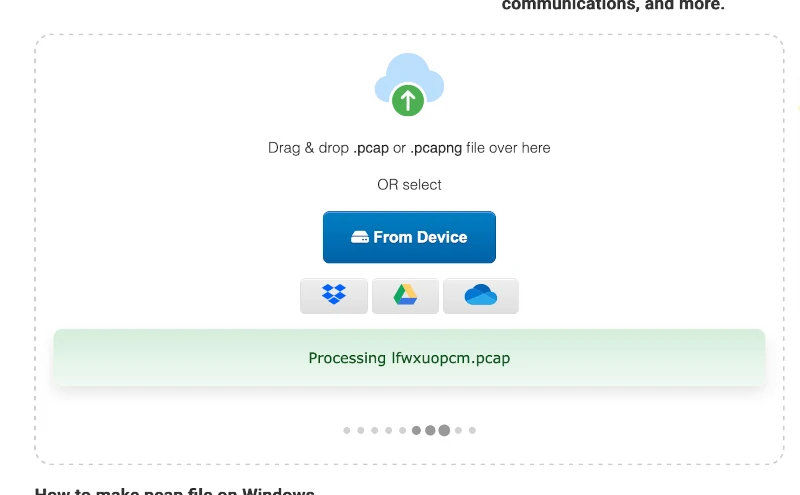
Step 5: View the Results
After the analysis is complete, a link will be appeared to the results page. This page will display detailed information about the network traffic contained in your PCAP file.
Key Sections of the Results:
-
Summary: An overview of the captured data, including the number of packets, total size, and duration of the capture.
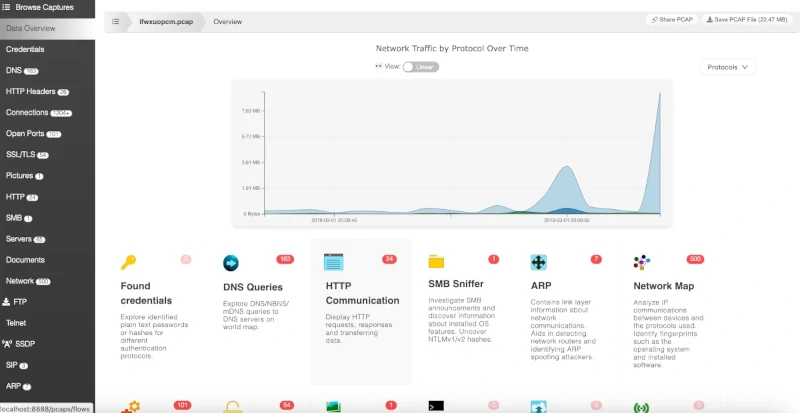
Upload Summary -
Traffic Analysis: Detailed breakdowns of the types of traffic, protocols used, and communication between different IP addresses.
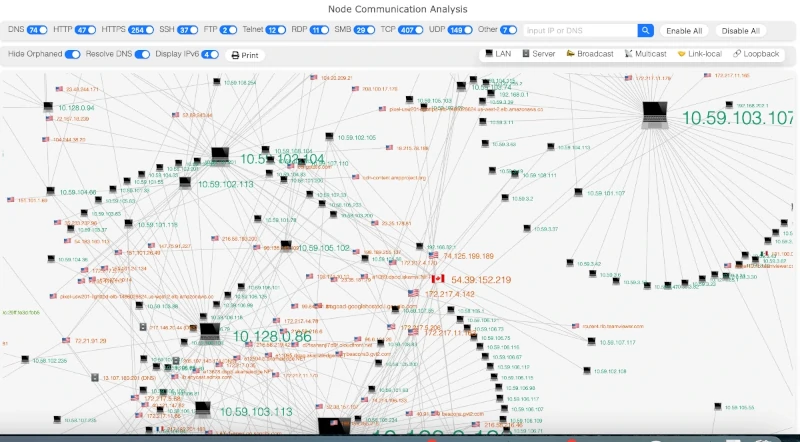
Traffic Chart -
Top Talkers: A list of the most active IP addresses in the capture, showing who is sending and receiving the most data.
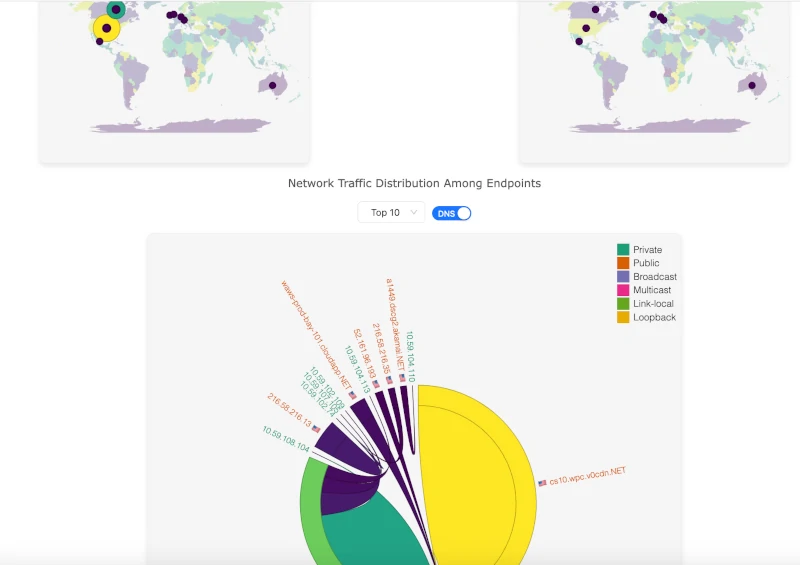
Connections Charts
Step 6: Download or Share Results
If you need to share the analysis results with colleagues or download them for further review, A-Packets typically provides options to share the results link. Look for the “Share" button on the results page.
Conclusion
Uploading and analyzing a PCAP file on A-Packets is a straightforward process. By following the steps outlined above, you can gain valuable insights into your network traffic and identify potential issues. This can help you ensure your network is secure and functioning optimally.
For more detailed analysis, consider exploring additional features offered by A-Packets, such as custom alerts, detailed protocol analysis, and historical data comparison.
Happy analyzing!