Windows
Convert ETL to PCAP on Windows with pktmon
Updated · Every command run or checked against its tool's documentation
Free uploads create public reports. Use only sanitized captures; choose private analysis for sensitive traffic.
Windows 10 and 11 come with a packet capture tool that most admins never open: Packet Monitor, pktmon.
It needs no Wireshark, no Npcap driver and no reboot, which matters on a server where you may not install
software. It writes its own ETL log, though, and analyzers read PCAP and PCAPNG. Here is how to record with
pktmon, convert ETL to PCAP format with the built-in etl2pcap command (the result is PCAPNG, which
A-Packets reads), and avoid the two defaults that quietly spoil a Windows capture.
Start a capture that keeps whole packets
Open PowerShell or Command Prompt as Administrator and start the capture with three options set on purpose:
pktmon start --capture --comp nics --pkt-size 0 --file-name C:\captures\issue.etl
--pkt-size 0 is the one people miss. By default pktmon logs only the first 128 bytes of every packet:
enough for addresses and ports, not for an HTTP body, a login or a file. Zero logs the whole packet.
--comp nics records at the network adapters only. Without it pktmon records at every component of the
network stack it watches, and the converted file gets the same packet several times. --file-name puts
the log where you can find it; otherwise it lands as PktMon.etl in the current folder. Reproduce the
problem while the capture runs, then stop it.
Filter before you start, not after
A capture without filters records everything the adapter sees, which is fine for a short reproduction on a quiet host. On a busy server, add filters first. Each filter names conditions that a packet must match, and pktmon keeps a packet that matches any of the filters you added:
pktmon filter add web -i 10.0.0.5 -p 443
pktmon filter add dns -p 53
pktmon filter list
Two values in one filter work differently: -i 10.0.0.5 10.0.0.9 matches only packets that carry both
addresses, in either direction, which is how you keep one conversation. -t TCP narrows a filter to a
protocol. Filters stay until you clear them with pktmon filter remove, so check
pktmon filter list before the next capture, or it will miss traffic you meant to keep.
Stop and convert the ETL log to PCAPNG
pktmon stop
pktmon etl2pcap C:\captures\issue.etl --out C:\captures\issue.pcapng
etl2pcap writes a PCAPNG file and leaves the ETL log as it was, so you can convert it again with other
options. Two of them matter. Packets that Windows dropped are left out unless you ask for them:
--drop-only writes a second file with just the drops, which helps when the complaint is a firewall or a
filter driver eating traffic. And when the capture ran on every component, pktmon list -a shows the
component IDs and --component-id converts only one of them, which is the cure for duplicate packets in
a capture that is already done.
Keep a long capture from overwriting itself
The ETL log has a size cap of 512 MB and runs in circular mode by default: when it is full, new packets overwrite the oldest ones. For an intermittent fault that may take hours to come back, that means the evidence can be gone by the time you stop. Switch to a series of files instead:
pktmon start --capture --comp nics --pkt-size 0 --file-name C:\captures\long.etl --file-size 200 --log-mode multi-file
--file-size is in megabytes. In multi-file mode pktmon starts a new log each time one is full and keeps
the older ones, so convert only the log that covers the moment of the fault.
Check the file, then upload it
The PCAPNG from etl2pcap is an ordinary capture file: Wireshark opens it, capinfos gives
its packet count and time span, and A-Packets analyzes it. Public analysis takes files up to
25 MB; Professional and Advanced plans take 50 and 100 MB. A busy server fills
that quickly, so split the large PCAP to the host or time window you need.
A capture from a production server also holds internal addresses, host names and often logins, and a free report
is public, so sanitize the PCAP first or analyze it in a private report. The
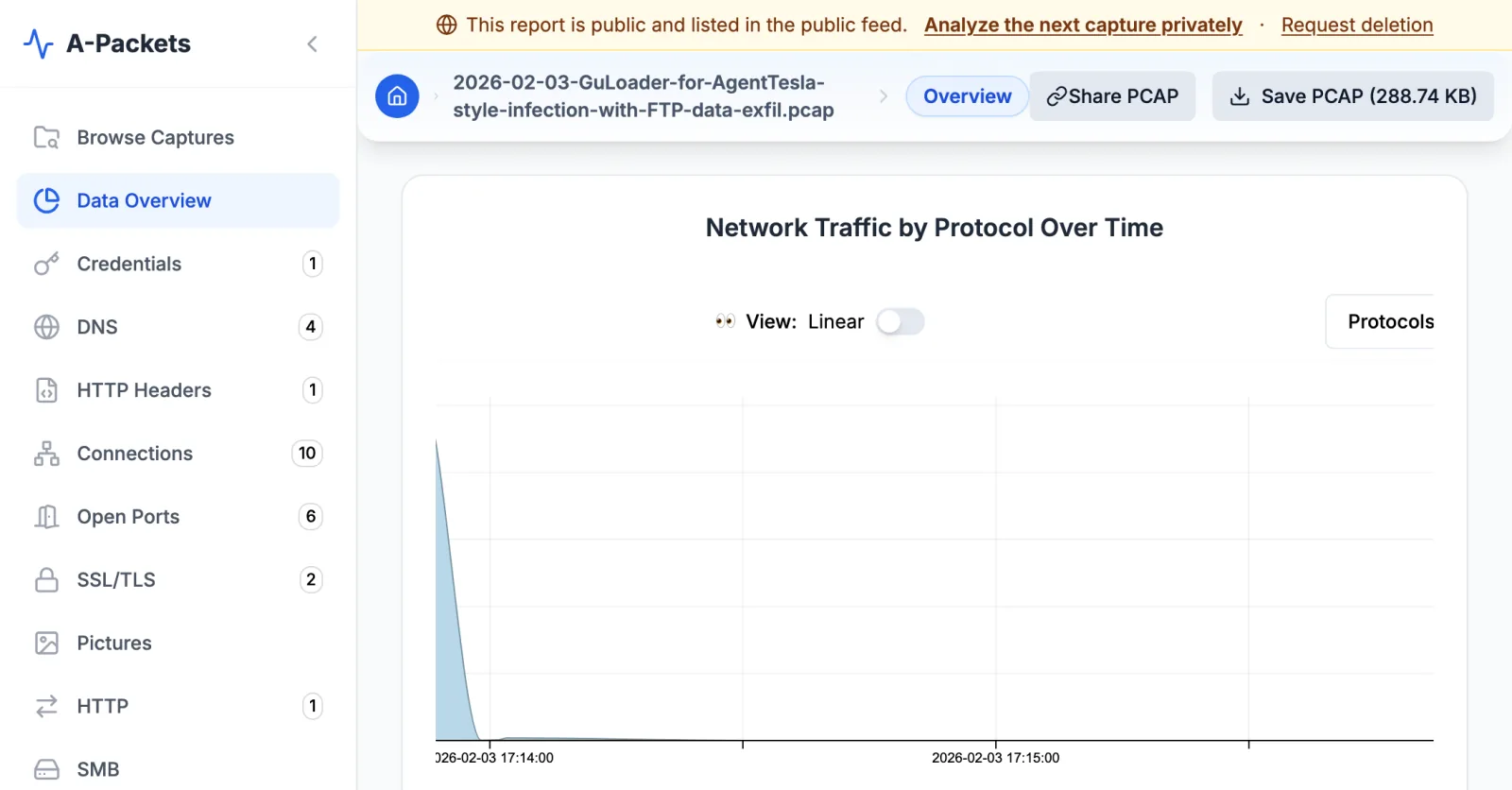
report opens on the Data Overview, as in the picture above, with a count for each view that has something to show.
pktmon and ETL questions
- Can A-Packets open the ETL file pktmon writes?
- No. A-Packets reads .pcap and .pcapng files, so convert the log with pktmon etl2pcap first. The ETL file stays as it was, and you can convert it again with other options.
- Why does every packet appear several times in my PCAPNG?
- pktmon recorded each packet at more than one component of the network stack, and PCAPNG keeps no note of which. Capture with --comp nics next time, or convert one component of the existing log with etl2pcap --component-id.
- Does pktmon need Wireshark or Npcap?
- No. Packet Monitor is part of Windows and writes its own ETL log. Wireshark, tshark and A-Packets are only readers of the PCAPNG file you convert it to.