Before you start
A-Packets is a self-hosted PCAP analysis platform for network forensics and incident response: it reconstructs HTTP sessions, DNS activity, credentials and transferred files from packet captures. Installed this way, it runs entirely inside your own network - captures are uploaded to this host, analysed on it, and stored on its disks. See A-Packets On-Premise for deployment options, licensing and what the analysis produces.
This guide covers the Starter Docker Compose package with local email-and-password authentication. It runs the application and its dependencies on one host. You will need the package and registry credentials supplied by A-Packets, plus a license that enables Docker Compose and local authentication.
| Requirement | Prepare |
|---|---|
| Operating system | Linux on x86_64 or arm64; Ubuntu 22.04 LTS or RHEL 8+ recommended. |
| Container runtime | Docker Engine 24+ and Docker Compose 2.24+; an account authorized to use Docker. |
| Memory and storage | At least 8 GB RAM (16 GB recommended) and 80 GB free disk space. Allow additional storage for captures and analysis results. |
| Verification tools | Bash, OpenSSL, sha256sum, Cosign 3.1.3+, tar, and curl. |
| Network | Outbound HTTPS access to registry.apackets.com and Docker Hub to pull images. Access to your SMTP service if using email. |
| DNS and TLS | A hostname resolving to your deployment, a trusted TLS certificate, and an HTTPS reverse proxy. Clients connect on port 443; the web container publishes plain HTTP on the port set by WEB_PUBLISH, 80 by default. |
Install Docker using the official instructions for your Linux distribution. Check the tools before continuing:
openssl version
sha256sum --version
cosign version
docker version
docker compose version
Examples use https://apackets.acme.example and [email protected]. Replace both with your own hostname and administrator email address. The example domain is a placeholder; create the DNS record and certificate for the domain you control.
The stack contains six services: web for the UI, core for the API and uploads, worker for analysis, PostgreSQL for application data, NATS for messaging, and SeaweedFS for S3-compatible object storage. SMTP is external. Other authentication methods and deployment packages depend on your license; this procedure uses local authentication.
1. Verify the release
Download these four files from your delivery message into the same directory. Download the separate license.jwt file to a location accessible to the deployment administrator. Keep delivery links and registry tokens private.
apackets-cosign.pub
apackets-starter-compose-VERSION.tar.gz
apackets-starter-compose-VERSION.tar.gz.sha256
apackets-starter-compose-VERSION.tar.gz.sha256.sigstore.json
In a Bash shell, set the release number from your delivery. The commands below use 1.3.0 as an example. Keep this shell open for the verification and extraction steps.
APACKETS_RELEASE='1.3.0'
APACKETS_ARCHIVE="apackets-starter-compose-${APACKETS_RELEASE}.tar.gz"
Check the signing key
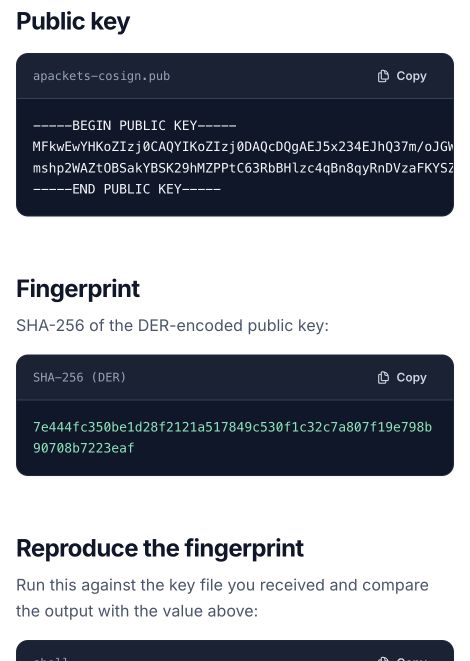
Open the A-Packets signing key page independently of the delivery links. Compute the fingerprint of the key you downloaded:
openssl pkey -pubin -in apackets-cosign.pub -outform DER \
  | openssl dgst -sha256
Compare the entire result with SHA-256 (DER) on the live signing key page. Running sha256sum apackets-cosign.pub hashes the PEM file instead and will give a different value.
Where to find the published fingerprint
Check the signature, then the archive checksum
After the key fingerprint matches, verify the signature on the checksum file:
cosign verify-blob \
  --insecure-ignore-tlog \
  --key apackets-cosign.pub \
  --bundle "${APACKETS_ARCHIVE}.sha256.sigstore.json" \
  "${APACKETS_ARCHIVE}.sha256"
The command must succeed and report Verified OK. For this delivery format, the release key signs the checksum file without publishing the blob signature to the public Sigstore transparency log. The flag skips that log check; it does not skip signature verification against the key you just checked. Cosign prints a warning about the skipped transparency check.
Now verify the archive against the authenticated checksum file:
sha256sum --check "${APACKETS_ARCHIVE}.sha256"Expected result: the archive filename followed by OK.
2. Extract and sign in to the registry
Updates are unpacked over the installation directory, so install into a stable path such as /opt/apackets rather than the versioned directory inside the archive. Run these commands as the user that runs Docker Compose:
sudo install -d -o "$USER" /opt/apackets
tar -xzf "${APACKETS_ARCHIVE}" --strip-components=1 -C /opt/apackets
cd /opt/apackets
Run all remaining Compose commands from this directory. It contains docker-compose.yml, configure.sh, .env.example, sign-in examples under auth/, the SMTP example under optional/, reference Grafana dashboards under grafana/, and README.md, the package's own guide. Your license is supplied separately.
Use the registry username and token from your delivery. Run this in Bash; the token prompt hides your input and --password-stdin keeps the token out of command history:
read -r -p 'Registry username: ' APACKETS_REGISTRY_USER
read -r -s -p 'Registry token: ' APACKETS_REGISTRY_TOKEN
printf '\n'
printf '%s' "$APACKETS_REGISTRY_TOKEN" \
  | docker login registry.apackets.com \
      --username "$APACKETS_REGISTRY_USER" \
      --password-stdin
unset APACKETS_REGISTRY_TOKEN APACKETS_REGISTRY_USER
Docker should report Login Succeeded. Use a Docker credential store approved by your organization. Without a credential helper, Docker may store credentials in its configuration file without encryption.
3. Configure A-Packets
Replace the license path, public URL and administrator email below, then run the configurator:
./configure.sh --non-interactive \
  --license /path/to/license.jwt \
  --domain https://apackets.acme.example \
  --auth local \
  --admin-email [email protected]
The script generates the PostgreSQL, object-storage, encryption and session-signing secrets on the host without printing them, writes .env and auth/local.env with permissions 0600, and installs the license as license.jwt. It sets APACKETS_VERSION to the version of the package and SECURE_COOKIES to match the scheme of --domain, checks that the license allows Docker Compose and local authentication, validates the Compose configuration, and checks Docker, memory, disk space and the web port. The application also checks the license at startup.
Resolve any resource or configuration warnings before using the deployment. Existing secrets are preserved if you rerun the script; rerunning it does not rotate credentials or reset an existing administrator password.
Confirm these values in .env before the first start:
DOMAIN=https://apackets.acme.example
SECURE_COOKIES=true
DOMAIN is the URL users open in the browser, so it uses https:// even though the containers speak plain HTTP behind your reverse proxy. With SECURE_COOKIES=true, browsers send the session cookie over HTTPS only. If the file shows false, run ./configure.sh --non-interactive --domain https://apackets.acme.example again. Leave HTTP_PORT, LICENSE_PATH and ENV unchanged: HTTP_PORT=8083 is the port inside the container, not the public HTTPS port.
Keep .env, auth/*.env and optional/*.env readable only by the deployment administrator. The installed license uses 0644 so runtime containers can read it; keep it administrator-owned and not writable by other users. Treat ENCRYPTION_KEY as part of your backup: it protects secrets stored in the database. JWT_SECRET signs session cookies, so anyone who holds it can forge a session for any account.
4. Set up outgoing email
SMTP is optional for the first local sign-in, but is needed for invitations and password-reset emails. You can configure and test it after sign-in in Settings → E-mail.
To preconfigure it before startup, copy the example and restrict its permissions:
cp optional/smtp.env.example optional/smtp.env
chmod 600 optional/smtp.env
Edit the file with settings from your organization's mail administrator. For example, an SMTP service using STARTTLS on port 587 would use:
SMTP_HOST=smtp.acme.example
SMTP_PORT=587
SMTP_LOGIN=<SMTP_USERNAME>
SMTP_PASSWD=<SMTP_PASSWORD>
SMTP_SECURITY=starttls
SMTP_FROM=A-Packets <[email protected]>
Replace all example values. Other supported security values are tls and none; use the port and transport required by your provider. Use a sender on a domain you control and have your mail administrator confirm SPF/DMARC configuration.
The file seeds missing settings on startup. Manage later changes in Settings → E-mail and send a test message to confirm delivery. There is no bundled mail server.
5. Configure HTTPS
Finish DNS and TLS setup before entering administrator credentials. Set the public URL to https://apackets.acme.example in this example, and use a certificate trusted by your users' browsers. Passkeys require a secure HTTPS origin.
Restrict the published port
Only web is published on the host, on the address and port in WEB_PUBLISH: port 80 on every interface by default. For the same-host nginx configuration below, bind it to the loopback interface in .env:
WEB_PUBLISH=127.0.0.1:8081The other services, including the API in core, are reachable only inside the Docker network. Do not publish the API port on a non-loopback address: requests sent to it directly skip the administrator and read-only license checks that web applies. Keep docker-compose.yml unchanged, because an update replaces it, and put local changes in docker-compose.override.yml, which Compose reads automatically.
If your reverse proxy runs on another host, bind WEB_PUBLISH to the deployment host's private interface, for example 10.0.0.5:80, and allow it only from that proxy. Use that private address as the proxy backend. Check the resulting exposure from another host: Docker-published ports can be reachable independently of host firewall rules.
Example: nginx on the same host
Install nginx through your organization's normal process. Add this server block to its configuration and replace the hostname and certificate paths. nginx listens on 443 and forwards to the loopback port set in WEB_PUBLISH.
server {
    listen 443 ssl;
    server_name apackets.acme.example;

    ssl_certificate     /etc/ssl/certs/apackets.crt;
    ssl_certificate_key /etc/ssl/private/apackets.key;

    client_max_body_size 0;
    proxy_read_timeout 300s;
    proxy_send_timeout 300s;

    location / {
        proxy_pass http://127.0.0.1:8081;
        proxy_set_header Host $host;
        proxy_set_header X-Real-IP $remote_addr;
        proxy_set_header X-Forwarded-For $proxy_add_x_forwarded_for;
        proxy_set_header X-Forwarded-Proto $scheme;
    }
}
Validate the configuration before reloading nginx:
sudo nginx -t && sudo systemctl reload nginxFor an existing corporate proxy or load balancer, use the same requirements: no request-size limit for large PCAP uploads, read/send timeouts of at least 300 seconds, and forwarded host and scheme headers. Apply these limits at every proxy in the request path. WebSockets and sticky sessions are not required; a load balancer health check can use GET /healthz. web answers /healthz, /readyz and /metrics without sign-in, so block them at the proxy if they must not be reachable from outside. A 502 is expected until the application starts in the next step.
6. Start and check the services
Validate without printing resolved secrets, review the image references, then pull and start the stack:
docker compose config --quiet
docker compose config --images
docker compose pull
docker compose up -d
docker compose ps
All six services should be running: core, worker, web, postgres, nats and seaweedfs. postgres and seaweedfs must report healthy before the application containers start; for the other services, Up only confirms that a process is running. When startup completes, ask the web service whether it is ready, on the address in WEB_PUBLISH (127.0.0.1:8081 in this example):
curl -s http://127.0.0.1:8081/readyzA ready service answers HTTP 200 with "status":"ready": web reaches PostgreSQL and NATS, and the license is valid. HTTP 503 with "status":"not_ready" names the failing check. Object-storage errors appear in docker compose logs worker instead. Then check the public endpoint through your proxy:
curl -sS -o /dev/null \
  -w 'HTTP %{http_code}, redirect=%{redirect_url}\n' \
  https://apackets.acme.example/
On a fresh installation, expect HTTP 303 with a redirect to https://apackets.acme.example/signin. For an internal certificate authority, install your organization's CA trust or use curl --cacert /path/to/ca.pem. Do not bypass certificate verification.
If the endpoint remains unavailable, inspect the affected service with docker compose logs --tail=100 SERVICE and use the troubleshooting table below. Logs may contain the temporary administrator password.
7. Sign in as the administrator
On the first web startup, A-Packets generates a temporary password for the email in auth/local.env and writes it once to the web logs. Retrieve it in a private terminal:
docker compose logs web \
  | grep 'Generated temporary local admin password'
This command displays a secret. Do not paste its output into a ticket, screenshot or shared terminal transcript.
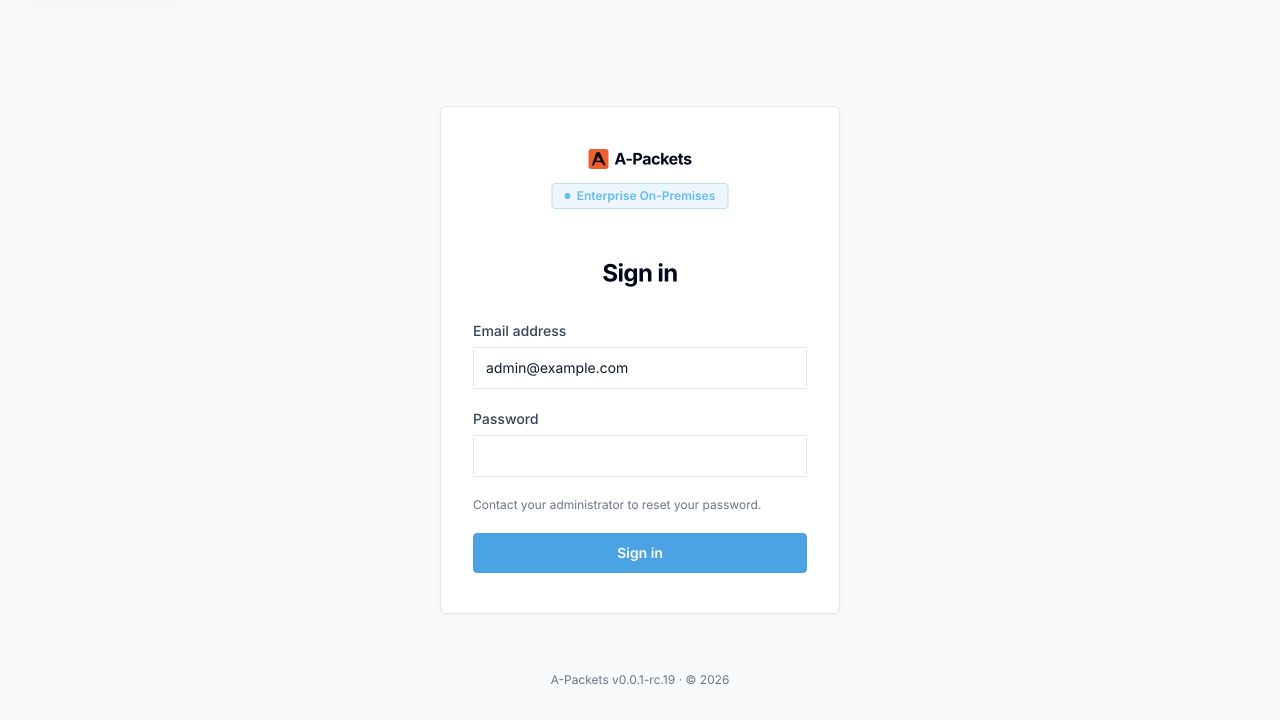
- Open
https://apackets.acme.example/signinin your browser. - Enter your configured administrator email and the temporary password.
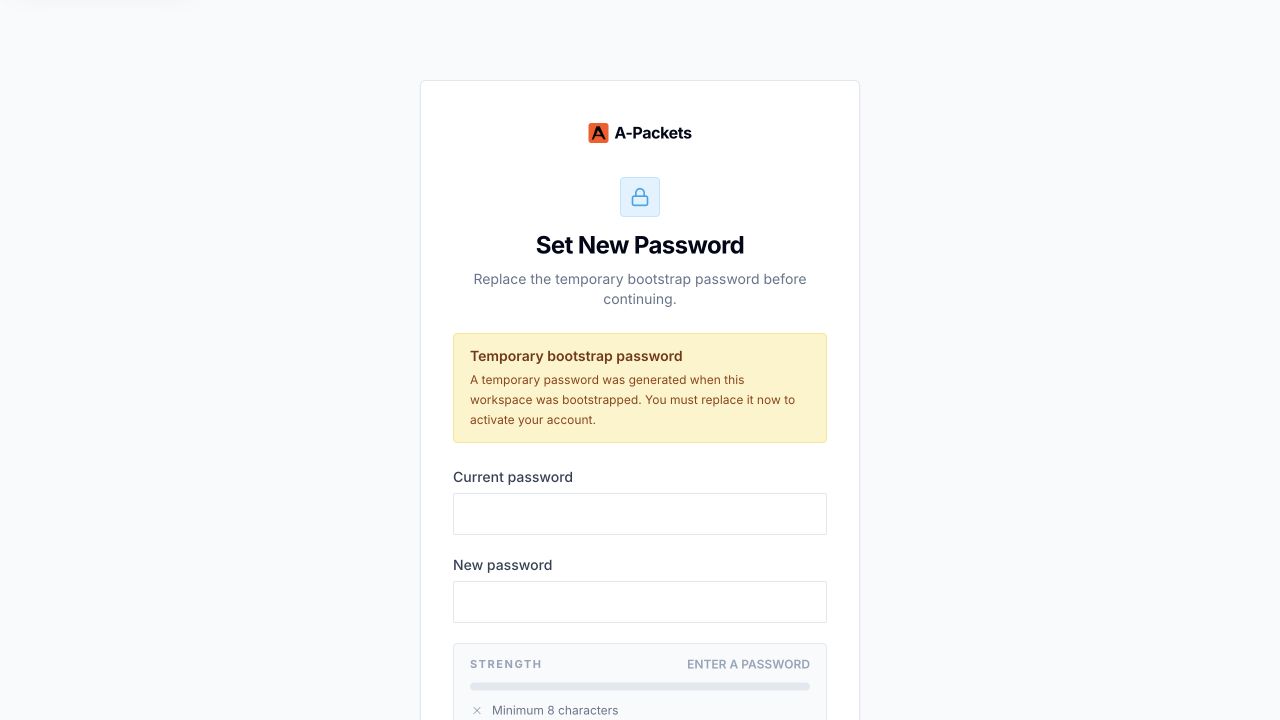
- On Set New Password, enter the temporary password as the current password and choose a new unique password. Store it in your organization's password manager.
- Complete the password change before continuing into the application.
Complete the setup
- Settings → License: check the licensed features and expiry date.
- Settings → Authentication: confirm the sign-in methods available to your users.
- Settings → E-mail: save your SMTP settings and complete a test send.
- Profile → Two-Factor Authentication: enroll a passkey. Enroll users before enabling Require passkeys for local users in Settings.
Before admitting users, confirm HTTPS sign-in works, the permanent administrator password is stored, email delivery is tested if needed, and your data backup and restore process is in place. Validate analysis with a non-sensitive capture from your own environment.
Updates
Every version comes as its own package. Verify it as in step 1 and read the release instructions supplied with it. Take a backup first: a new version migrates the database when it starts, so going back means restoring that backup; setting the old version again is not enough.
Unpack the new package over the installation directory. .env, license.jwt, auth/*.env, optional/*.env and docker-compose.override.yml are not in the archive, so they stay in place. Sign in to the registry again if your token has changed, then run:
cd /opt/apackets
tar -xzf /path/to/apackets-starter-compose-VERSION.tar.gz --strip-components=1
./configure.sh --non-interactive
docker compose pull
docker compose up -d --remove-orphans
docker compose ps
The configurator sets APACKETS_VERSION to the version of the new package and keeps every existing secret, including ENCRYPTION_KEY. --remove-orphans removes containers the new package no longer defines. The data stays because Docker names the volumes after COMPOSE_PROJECT_NAME, not after the directory. Allow for a service interruption while containers are replaced, then recheck the HTTPS endpoint and administrator sign-in. A plan change works the same way with the new plan's package; add --license /path/to/new-license.jwt to the configurator.
Data and backups
Application data persists in the postgres_data and seaweedfs_data Docker volumes, prefixed with the Compose project name: apackets_postgres_data and apackets_seaweedfs_data with the default COMPOSE_PROJECT_NAME=apackets. Recreating application containers preserves these volumes. docker compose down -v removes them and is not an update or routine troubleshooting step.
A backup needs the database, the stored captures and generated files, and the configuration with its keys. Without the original ENCRYPTION_KEY from .env, the secrets stored in a restored database, such as SMTP passwords and OAuth client secrets, cannot be decrypted. These commands stop A-Packets for a few minutes so the database and the stored files match. The backup directory is readable by you only, because the configuration archive holds every secret:
mkdir -p -m 700 backup
docker compose stop
docker compose up -d --wait postgres
docker compose exec -T postgres sh -c 'pg_dump -U "$POSTGRES_USER" -d "$POSTGRES_DB" -Fc' > backup/apackets-db.dump
docker cp "$(docker compose ps -aq seaweedfs)":/data - | gzip > backup/apackets-objects.tar.gz
tar -czf backup/apackets-config.tar.gz .env license.jwt auth optional $(ls docker-compose.override.yml 2>/dev/null)
docker compose up -d
Copy the backup off this host and store it like any other credential: a copy on the same disk does not survive host or disk loss. Restore into an installation of the same package version with empty volumes, such as a new host or this host after docker compose down -v, and sign in to the registry first:
tar -xzf backup/apackets-config.tar.gz
docker compose up -d --wait postgres
docker compose exec -T postgres sh -c 'pg_restore -U "$POSTGRES_USER" -d "$POSTGRES_DB" --no-owner' < backup/apackets-db.dump
docker compose create seaweedfs
gunzip -c backup/apackets-objects.tar.gz | docker cp -a - "$(docker compose ps -aq seaweedfs)":/
docker compose up -d
Test a restore with your infrastructure team before you onboard production data.
Troubleshooting
| Symptom | What to check |
|---|---|
| Fingerprint, signature or checksum mismatch | Stop installation. Confirm that all files belong to the same release and compare the key with the published fingerprint. Send verification output to support. |
Registry login succeeds, but pull returns unauthorized | Use the current customer username and token. Login alone does not prove pull permission for apackets/core, apackets/worker and apackets/web. Ask support to check access if a fresh login does not resolve it. |
| License rejected or missing | Check that license.jwt exists in the Compose directory, is readable by the containers, has not expired, and enables Compose and local authentication. |
| A service exits or keeps restarting | Inspect docker compose ps and docker compose logs --tail=100 SERVICE. Resolve the first startup error; check license, free disk space and dependencies. Do not delete volumes to retry. |
UI unavailable, 502, or incorrect redirects | Check DNS, certificate trust, that the proxy backend matches WEB_PUBLISH, and the web logs. Confirm that DOMAIN exactly matches the public HTTPS URL and SECURE_COOKIES=true. After changing env files, run docker compose up -d to apply them. |
| Sign-in returns to the sign-in page | The browser uses plain HTTP while SECURE_COOKIES=true. Open the HTTPS URL, or run ./configure.sh --non-interactive --domain again with the URL users actually open. |
/readyz returns 503 | The response names the failing check: PostgreSQL, NATS or the license. |
Uploads fail with 413 or timeout | Check every reverse proxy for request-body limits and timeouts. Apply the HTTPS settings to the full request path. |
| Invitations or password-reset emails unavailable | Configure Settings → E-mail, check SMTP reachability and credentials, then send a test message. Editing the bootstrap file does not replace settings already saved in the database. |
| No temporary password in current logs | The bootstrap password is written only when the account is created. Check retained first-start logs. Rerunning the configurator does not reset the account; use an available password-reset flow or ask your A-Packets contact. |
Contact support
Raise the issue with your A-Packets contact. Include your release version, Linux and Docker versions, the failing step, and the relevant error message. These commands provide a starting point for diagnostics:
docker compose ps
docker compose logs --tail=100
Review output before sharing. Redact temporary passwords, tokens, connection strings, email addresses and any capture data. Do not attach your .env, provider env files, license token or backups.