Before you start
A-Packets is a self-hosted PCAP analysis platform for network forensics and incident response: it reconstructs HTTP sessions, DNS activity, credentials and transferred files from packet captures. In an air-gapped installation it needs no outbound network access at all - captures, analysis results and license checks stay inside the isolated environment. See A-Packets On-Premise for deployment options, licensing and what the analysis produces.
This guide installs the Enterprise air-gapped Helm package into an existing Kubernetes cluster using local email-and-password authentication. You transfer a verified release into the isolated network, import its images into your internal registry, then run the supplied installer. Cluster nodes pull A-Packets images from that registry.
The package contains the Helm chart, application images for Linux AMD64 and ARM64, image digest locks, signatures, SPDX SBOMs, installation scripts and configuration examples. It deploys five application components: API, uploader, receiver, worker and web. PostgreSQL, NATS, S3-compatible storage, the registry, ingress controller and their images are supplied separately.
| Requirement | Prepare |
|---|---|
| Connected workstation | Access to your delivery files and the independent signing-key reference. An approved method to transfer the package, verification tools and separately supplied license into the isolated network. |
| Installation host | Bash, OpenSSL, Cosign, sha256sum, zstd, tar, Skopeo, jq, curl, kubectl and Helm 3.13 or newer. Install tools and their dependencies before disconnecting. The example delivery was verified with Cosign 3.1.3 and Skopeo 1.24.1. Allow disk space for the package and extracted image archive, including temporary files during import. |
| Internal registry | An OCI registry that preserves multi-architecture image index digests, with an A-Packets project, trusted TLS and push credentials for the installation host. All nodes need registry connectivity, CA trust and pull access. |
| Kubernetes | A working cluster with capacity for the delivered replica and resource settings. Installation permissions for namespaces, Deployments, Services, ConfigMaps, Secrets, ServiceAccounts and Ingress. Prepare required cluster infrastructure and its images inside the network. |
| Application services | PostgreSQL, NATS and S3-compatible storage reachable from application pods. Create the S3 bucket before installation. Arrange persistent storage, backups and credentials. Email, if enabled, needs an internal SMTP relay. |
| DNS, TLS and license | Internal DNS, an ingress controller and a browser-trusted certificate for the application hostname. An active Enterprise license granting deployment_helm and auth_local. |
Examples use https://apackets.acme.example, registry project registry.acme.example/apackets and administrator [email protected]. Replace these documentation addresses with names resolvable in your network, and replace every value in angle brackets. The supplied installer uses release name apackets and namespace apackets.
Run command blocks in Bash and keep the selected release consistent throughout. The version below is an example; use the version in your delivery filename. For a connected cluster, see Kubernetes installation with Helm.
1. Verify the delivery
On the connected workstation, download the four files supplied for the same release into one directory. Your delivery links are specific to your organization; keep them private.
apackets-cosign.pub
apackets-enterprise-helm-airgap-0.0.1-rc.19.tar.zst
apackets-enterprise-helm-airgap-0.0.1-rc.19.tar.zst.sha256
apackets-enterprise-helm-airgap-0.0.1-rc.19.tar.zst.sha256.sigstore.jsonAPACKETS_RELEASE='0.0.1-rc.19'
APACKETS_PACKAGE="apackets-enterprise-helm-airgap-${APACKETS_RELEASE}"
APACKETS_ARCHIVE="${APACKETS_PACKAGE}.tar.zst"
set -o pipefailConfirm the public key independently
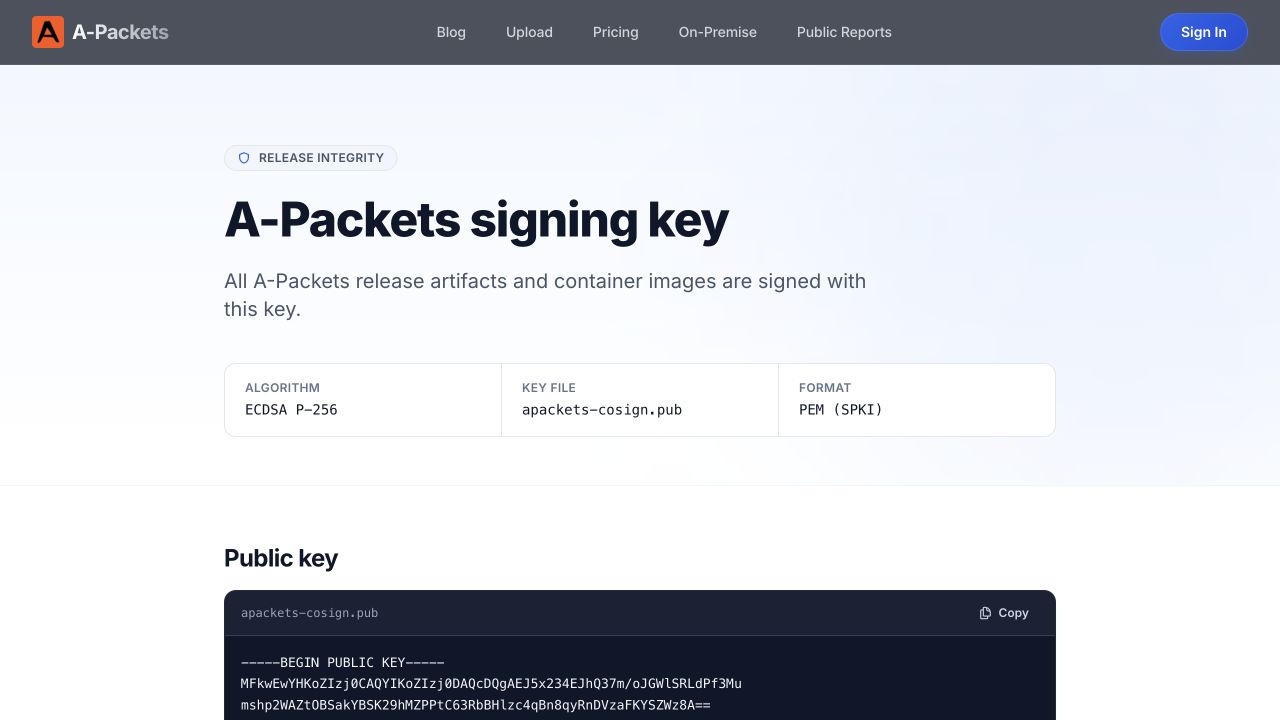
Open the A-Packets signing key page independently of the delivery links. Compare its SHA-256 fingerprint with the fingerprint of the downloaded key's DER representation:
openssl pkey -pubin -in apackets-cosign.pub -outform DER \
  | openssl dgst -sha256
The values must match exactly. Retain the independently confirmed fingerprint for verification inside the isolated network. A fingerprint obtained only from the archive is not an independent trust reference.
Reference: the signing key page
Verify the signature, then the archive
cosign verify-blob \
  --insecure-ignore-tlog \
  --key apackets-cosign.pub \
  --bundle "${APACKETS_ARCHIVE}.sha256.sigstore.json" \
  "${APACKETS_ARCHIVE}.sha256"
Expect Verified OK. This delivery uses a release signing key without a public transparency-log entry. --insecure-ignore-tlog disables that log check, so Cosign prints a warning; it still verifies the signature using the supplied key. This is why independent key verification is required.
sha256sum --check "${APACKETS_ARCHIVE}.sha256"Expect the archive filename followed by : OK. On a workstation without sha256sum, use shasum -a 256 --check for checksum commands.
Stop if any verification fails.
Do not extract or install files with a different key fingerprint, invalid signature or failed checksum. Keep the original files and sanitized verification output, then raise it with your A-Packets contact.
2. Transfer and verify the payload
Transfer the four original files and your independently confirmed fingerprint to the installation host using your organization's approved process. Transfer the license separately. Inside the isolated network, select the release variables again and repeat the fingerprint, signature and archive-checksum checks from step 1 before extracting anything.
zstd -dc "${APACKETS_ARCHIVE}" | tar -xf -
cd "${APACKETS_PACKAGE}"
This directory contains a second, signed payload archive, its checksum and signature bundle, a public key, and a README. Verify the payload before extracting it:
cosign verify-blob \
  --insecure-ignore-tlog \
  --key "${APACKETS_PACKAGE}.pub" \
  --bundle "${APACKETS_PACKAGE}-payload.tar.zst.sha256.sigstore.json" \
  "${APACKETS_PACKAGE}-payload.tar.zst.sha256"

sha256sum --check "${APACKETS_PACKAGE}-payload.tar.zst.sha256"
Continue only after Verified OK and the payload archive's : OK result. The inner public key is covered by the verified outer archive.
zstd -dc "${APACKETS_PACKAGE}-payload.tar.zst" | tar -xf -
cd "${APACKETS_PACKAGE}"
./scripts/verify.sh
Expect Package signatures and SHA-256 checksums are valid. The script checks the signed checksum manifest and signatures for the chart, image archive, image lock and SBOM index. Keep the signed files unchanged. The delivered config/ directory is editable; run subsequent commands from this payload root.
3. Import images into your registry
Create the destination project in your internal registry and configure CA trust on the installation host and every Kubernetes node. Use a registry account with push access for import:
skopeo login registry.acme.example
./scripts/import.sh registry.acme.example/apackets
The script verifies the package, copies both AMD64 and ARM64 images while preserving their OCI index digests, then compares the destination manifests against images.lock.json. Expect a Verified line for each of api, receiver, uploader, web and worker, followed by:
All A-Packets images are available in registry.acme.example/apackets with the expected digests.This operation reads images from the delivered archive; it does not need to pull application images from the public A-Packets registry. If the registry rewrites manifests and changes their digests, resolve that configuration before installing.
You can repeat the destination check without copying images:
./scripts/import.sh --verify-only registry.acme.example/apackets4. Give Kubernetes registry access
Confirm the destination cluster and create the application namespace:
kubectl config current-context
kubectl get nodes -o wide
helm version --short
kubectl create namespace apackets --dry-run=client -o yaml \
  | kubectl apply -f -
Kubernetes does not reuse your skopeo login. For an authenticated registry, obtain a separate pull-only account and create its Secret in the release namespace:
read -r -p 'Pull-only registry username: ' APACKETS_REGISTRY_USER
read -r -s -p 'Pull-only registry password: ' APACKETS_REGISTRY_PASSWORD
printf '\n'
kubectl create secret docker-registry apackets-registry \
  --namespace apackets \
  --docker-server=registry.acme.example \
  --docker-username="${APACKETS_REGISTRY_USER}" \
  --docker-password="${APACKETS_REGISTRY_PASSWORD}" \
  --dry-run=client -o yaml | kubectl apply -f -
unset APACKETS_REGISTRY_USER APACKETS_REGISTRY_PASSWORD
The registry hostname, including a non-default port if used, must match the hostname in the image references. The next step references this Secret in every application Deployment. For a registry that does not require authentication, omit Secret creation and use global.imagePullSecrets: [].
5. Configure infrastructure and HTTPS
Edit the matching sections of config/customer-values.yaml. Merge these settings into the existing keys, preserving the delivered replica and resource settings unless your deployment sizing requires changes. Do not edit values.yaml inside the chart or override the release image tag.
global:
  imageRegistry: registry.acme.example/apackets
  imagePullSecrets:
    - name: apackets-registry

config:
  domain: https://apackets.acme.example
  secureCookies: true
  databaseUrl: 'postgres://<DB_USER>:<URL_ENCODED_DB_PASSWORD>@postgres.acme.example:5432/apackets'
  natsUrl: nats://nats.acme.example:4222
  s3Endpoint: https://s3.acme.example
  s3Region: '<S3_REGION>'
  s3Bucket: apackets

secrets:
  s3AccessKey: '<S3_ACCESS_KEY>'
  s3SecretKey: '<S3_SECRET_KEY>'
  encryptionKey: '<64_HEX_CHARACTERS>'

service:
  web:
    type: ClusterIP

ingress:
  enabled: true
  className: '<INGRESS_CLASS>'
  host: apackets.acme.example
  tlsSecretName: apackets-tls
Use endpoints reachable from the pods and the authentication and transport-security settings required by your infrastructure. Percent-encode special characters in database URL credentials. The chart does not create the external services or S3 bucket. Allow the necessary internal connections in your network policies.
Generate and preserve the encryption key
openssl rand -hex 32Store the output in secrets.encryptionKey: exactly 64 hexadecimal characters, representing 32 bytes. Keep a protected backup. The application uses it to encrypt values in PostgreSQL; reuse the same key during upgrades and recovery.
Protect values and license files and keep them out of source control. Helm stores supplied values in release records. In this chart, database and NATS URLs are rendered into a ConfigMap, including embedded credentials; restrict access to ConfigMaps and Helm records as well as Secrets.
Prepare internal DNS and TLS
Choose an installed ingress class and point your application DNS record at its controller. The certificate must cover the hostname in config.domain and ingress.host. Use a DNS hostname rather than an IP address for the application's WebAuthn configuration.
kubectl get ingressclass
kubectl create secret tls apackets-tls \
  --namespace apackets \
  --cert=/path/to/fullchain.pem \
  --key=/path/to/privkey.pem
If a certificate manager already provides this Secret, skip its manual creation. Use a certificate issuer available inside the network and distribute its CA trust to clients. Set secureCookies: true explicitly. Configure HTTPS redirection, request-body limits and timeouts on the ingress controller for the capture sizes you expect to upload.
6. Configure the administrator and license
cp ./config/auth/local.values.yaml.example ./config/auth/local.values.yaml
chmod 600 ./config/customer-values.yaml ./config/auth/local.values.yaml
Set the first administrator's address in config/auth/local.values.yaml:
config:
  adminEmail: [email protected]
One of the initial web pods creates the administrator and logs a temporary password once. Retrieve it immediately after installation, before replacing those pods. Local authentication needs the auth_local entitlement as well as deployment_helm.
The commands below use a separately transferred license at /secure-transfer/license.jwt; replace that path with your protected license file. Configure exactly one license source. For an existing license Secret, set license.existingSecret in the customer values; the Secret must exist in namespace apackets and contain license.secretKey (default: license.jwt). Omit --set-file from lint and pass - as the installer's second argument.
For an internal LDAP or SAML identity provider, use the corresponding delivered overlay, bootstrap administrator selector and license entitlement. Confirm that all provider endpoints are reachable inside the isolated environment before replacing the local authentication overlay.
7. Configure email (optional)
Local first sign-in does not require SMTP. Configure an internal relay if you need invitations or password-reset emails:
cp ./config/optional/smtp.values.yaml.example ./config/optional/smtp.values.yaml
chmod 600 ./config/optional/smtp.values.yaml
Set the copied file to the relay's configuration:
smtp:
  enabled: true

config:
  smtpHost: smtp.acme.example
  smtpPort: "587"
  smtpSecurity: starttls
  smtpFrom: [email protected]

secrets:
  smtpLogin: '<SMTP_USER>'
  smtpPassword: '<SMTP_PASSWORD>'
Match the port and smtpSecurity to your relay: starttls, tls or none. The sender is an address only, without a display name. Provide both login and password, or leave both empty for a relay that does not require authentication.
To enable this overlay, add --values ./config/optional/smtp.values.yaml to the lint command after the local authentication overlay. Append ./config/optional/smtp.values.yaml to the installer command. If email is not needed, omit both additions.
8. Validate and install
Lint the delivered chart with the same customer values, authentication overlay, optional SMTP overlay and license you will install:
helm lint "./apackets-${APACKETS_RELEASE}.tgz" \
  --values ./config/release-values.yaml \
  --values ./config/customer-values.yaml \
  --values ./config/auth/local.values.yaml \
  --set-file license.jwt=/secure-transfer/license.jwt \
  --set-string global.imageRegistry=registry.acme.example/apackets \
  --set-string "global.imageTag=${APACKETS_RELEASE}"
Resolve validation errors before installation. Lint checks configuration, not database connectivity, registry access or runtime license entitlements. Run the supplied installer:
./scripts/install.sh \
  registry.acme.example/apackets \
  /secure-transfer/license.jwt \
  ./config/auth/local.values.yaml
The installer verifies the signed package and destination image digests before running helm upgrade --install. It applies release values, customer values, then your additional overlays in order; the final registry and image tag are pinned by the installer. It waits up to ten minutes for release apackets in namespace apackets. Expect Helm status deployed and the installer's completion message.
Keep the installation terminal private: the next step displays the temporary administrator password. If Helm times out, inspect the existing release and affected pods before retrying.
9. Save the password and sign in
Immediately inspect logs from all initial web replicas. Only the pod that created the account logs its password:
kubectl logs --namespace apackets \
  --selector app.kubernetes.io/instance=apackets,app.kubernetes.io/component=web \
  --all-containers=true --prefix=true --tail=-1 \
  | grep 'Generated temporary local admin password'
Save the temporary password securely. Open https://apackets.acme.example/signin, sign in with your configured administrator email and temporary password, then complete the required password change.
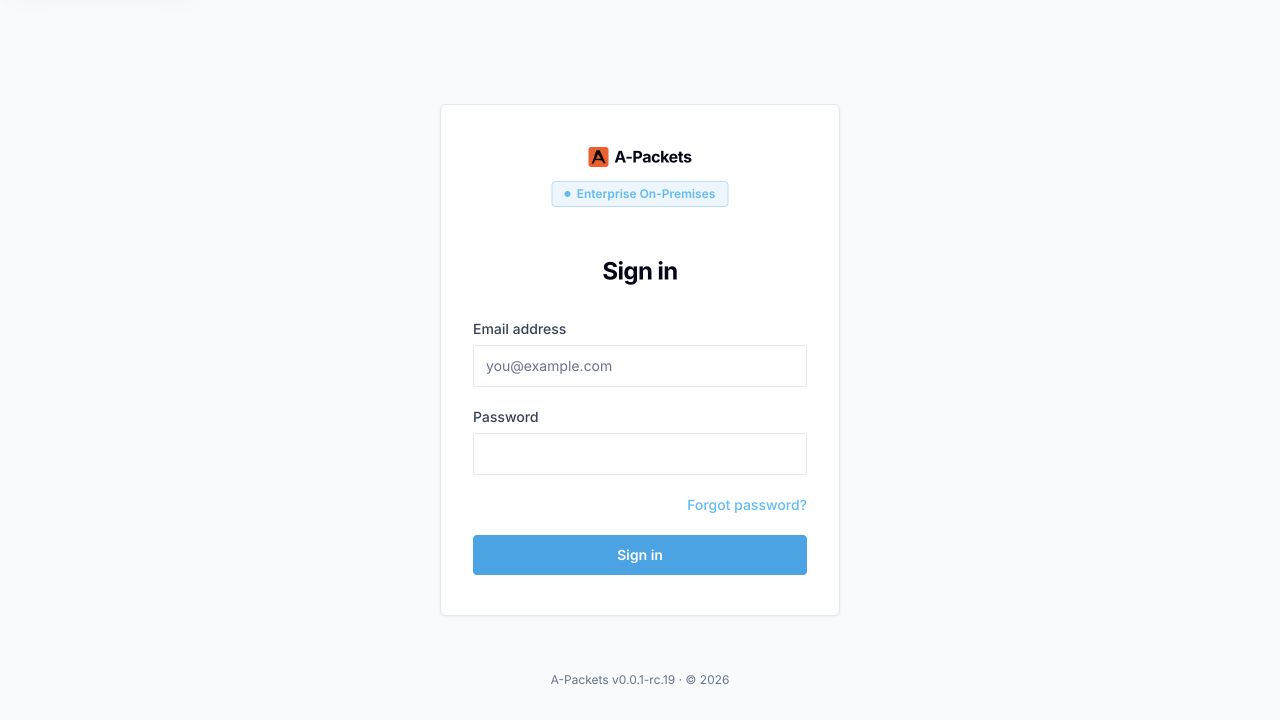
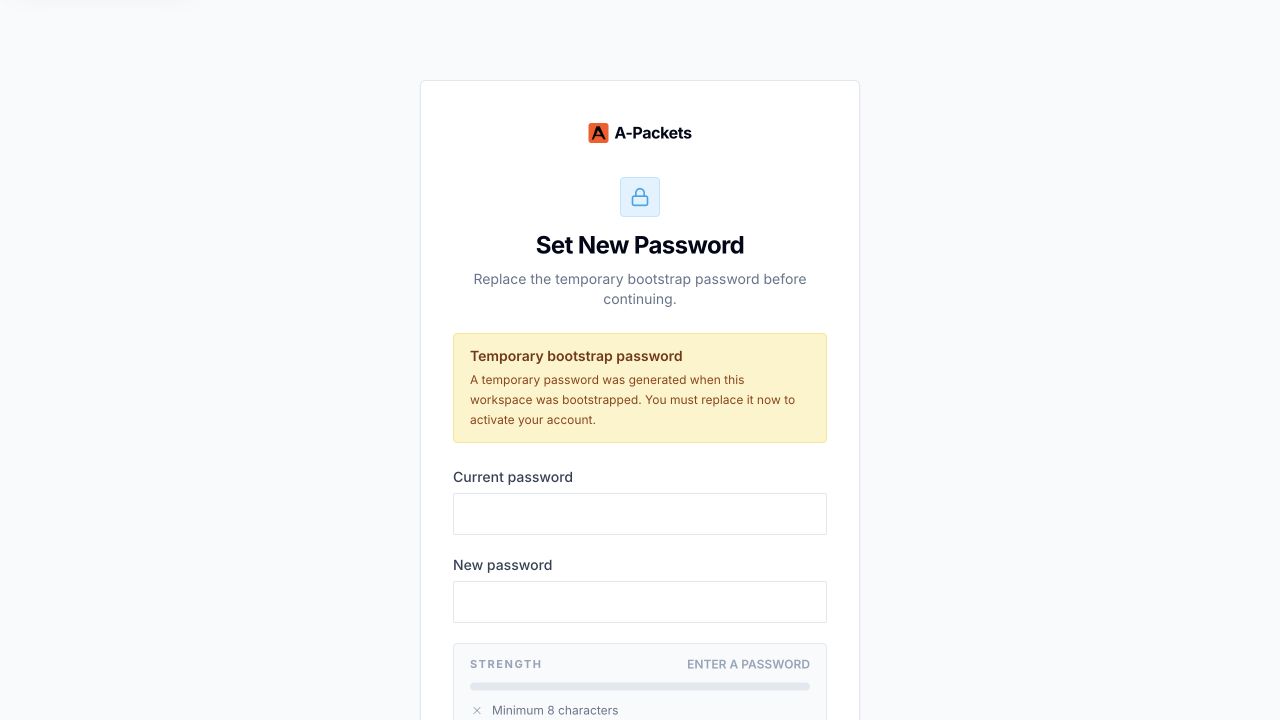
If the account already exists, a restart does not generate a new password. If the original logs are unavailable, use configured email recovery or ask your A-Packets contact. Do not recreate the database to recover an administrator account.
10. Verify the installation
Check the release and application services
helm status apackets --namespace apackets -o json \
  | jq -e '.info.status == "deployed"'

for component in api uploader receiver worker web; do
  kubectl get deployment "apackets-apackets-${component}" --namespace apackets -o json \
    | jq -e '.spec.replicas > 0 and .status.availableReplicas == .spec.replicas'
done
Each check should return true. Verify ready endpoints for the three application Services:
for service in apackets-apackets-api apackets-apackets-uploader apackets-apackets-web; do
  kubectl get endpointslice --namespace apackets \
    --selector "kubernetes.io/service-name=${service}" -o json \
    | jq -e '[.items[].endpoints[]? | select(.conditions.ready != false)] | length > 0'
done
Check HTTPS and sign-in
From a client that resolves your internal DNS name, check the public application endpoint:
curl -sS -o /dev/null -w '%{http_code}\n' https://apackets.acme.example/readyz
curl -sS -o /dev/null -w '%{http_code}\n' https://apackets.acme.example/healthz
curl -sS -o /dev/null -w '%{http_code}\n' https://apackets.acme.example/signin
curl -sS -o /dev/null -w '%{http_code} %{redirect_url}\n' https://apackets.acme.example/
Expect 200 from health and sign-in, and 303 https://apackets.acme.example/signin from an unauthenticated request to the root. Install your organization's CA trust or supply --cacert /path/to/ca.pem; keep certificate verification enabled.
Check the license and complete a functional test
for component in uploader receiver worker; do
  kubectl logs "deployment/apackets-apackets-${component}" --namespace apackets \
    | grep -Ei 'license is active|read-only mode|entitlement'
done
Confirm active license messages, a visible local sign-in form and successful sign-in after changing the password. Upload a small approved test capture, wait for analysis, and open its results. Ready pods and successful health checks alone do not verify the full analysis workflow.
Verify email if enabled
Check delivery through Settings → E-mail and confirm receipt in the intended mailbox. A successful SMTP connection alone does not prove that application emails are delivered.
Updates and Secret rotation
For an update, obtain the new air-gapped package, review its release notes, verify and transfer it, then import its images into the internal registry. Work from the new payload directory. Carry forward your customer settings and overlays, reconcile any configuration changes, and retain the existing encryption key. Run lint and the new package's installer with the same release and namespace, then repeat the installation checks.
Back up PostgreSQL, object storage and configuration before upgrading. Follow the release's migration and recovery instructions; do not assume that a Helm rollback reverses database changes.
The chart restarts application pods when rendered configuration or chart-managed Secrets change. For externally managed application or license Secrets, update rollout.restartAt in customer values to a new timestamp and run the installer again:
rollout:
  restartAt: "2026-09-21T18:00:00Z"
Use a new timestamp for each restart. An external application Secret must supply the keys expected by the chart, including S3_ACCESS_KEY, S3_SECRET_KEY and ENCRYPTION_KEY, plus any enabled provider credentials. See the externally managed Secrets reference and the delivered Secret template.
Data and backups
PostgreSQL and S3-compatible storage hold application data outside the Helm release. Maintain backups and test restoration together with the original encryption key and configuration. Apply your retention policy to captures, extracted files and reports; monitor database, object-storage and worker capacity.
Keep the original verified delivery and the previous release's images available for your recovery process. Deleting a namespace can remove Secrets and storage resources; it is not a routine update or troubleshooting step.
Troubleshooting
| Symptom | Check |
|---|---|
| Fingerprint, signature or checksum mismatch | Stop. Confirm all files belong to one delivery and compare the key with your independently verified reference. Preserve the original files for support; do not bypass verification. |
| Image import or digest verification fails | Check push permissions, project name, free temporary disk space and registry CA trust. The registry must preserve OCI index digests. Retry import from the verified payload and require all five destination checks to pass. |
ImagePullBackOff or ErrImagePull | Inspect pod events. Confirm every node can resolve and reach the registry, trusts its CA, and has pull credentials through global.imagePullSecrets. The Secret must be in the release namespace and match the registry host and port. |
| Helm timeout or pods not Ready | Inspect pod events and affected service logs. Check capacity, internal DNS, network policies, PostgreSQL, NATS, S3 credentials and the pre-created bucket. Lint cannot validate connectivity. |
| HTTPS or WebAuthn configuration error | Use a DNS hostname for config.domain. Match it to the ingress hostname and certificate, enable secure cookies, and check ingress class and controller events. For rp_id is not an effective_domain of rp_origin, check that the application URL is a hostname rather than an IP literal. |
| Read-only mode or missing local sign-in | Check license validity, expiry, deployment_helm and auth_local, exactly one license source, and the local authentication overlay. A Ready web pod does not prove the sign-in method is licensed. |
| No temporary password in logs | Inspect all initial web replicas. An existing account does not receive another bootstrap password. Use configured email recovery or support if the original password is unavailable. |
| SMTP configuration or delivery fails | Supply the complete enabled overlay to lint and install, or omit it. Check internal relay access, CA trust, port, security mode, address-only sender and paired credentials. Confirm receipt using the application's email settings. |
Uploads fail with 413 or timeout | Check request-body limits and timeouts at every proxy in the upload path, and size worker resources for your captures. |
| External Secret changed but pods did not restart | Set a new rollout.restartAt value and rerun the installer. Helm cannot include externally managed Secret contents in its checksums. |
Contact support
From a connected workstation, raise the issue with your A-Packets contact. Include the release version, Kubernetes and Helm versions, release name, namespace, failing step and sanitized error output. Use your approved transfer process to export diagnostics from the isolated network.
helm status apackets --namespace apackets
kubectl get pods --namespace apackets
kubectl get events --namespace apackets --sort-by=.metadata.creationTimestamp
Review logs and configuration before sharing them. Remove license contents, delivery URLs, database credentials, registry tokens, encryption keys and temporary passwords.